> ## Documentation Index
> Fetch the complete documentation index at: https://docs.msghello.ai/llms.txt
> Use this file to discover all available pages before exploring further.
# Test an Agent
> Talk to the agent directly in the browser – without a real call.
Before an agent goes live, you should try it out. With the **test call**, you talk to the agent directly in the browser – through your microphone, entirely without the phone network.
## What the test call checks
The test call runs **live against your current draft**. Changes to the flow therefore take effect immediately in the next test, without you having to publish. This lets you iterate quickly.
Test calls create **no** logged call and no entry in the call analysis – they serve solely for trying things out.
## Starting a test call
For the agent's draft, open the **Test call** view.
Allow the browser access to your microphone. The connection is established.
Talk to the agent like a real caller. You hear its responses and see the conversation live.
## The test interface
During the test, you see three areas side by side:
Shows live which state of the flow the agent is currently in.
The ongoing conversation as text – your inputs and the agent's responses.
Technical events such as tool calls, results, and state changes.
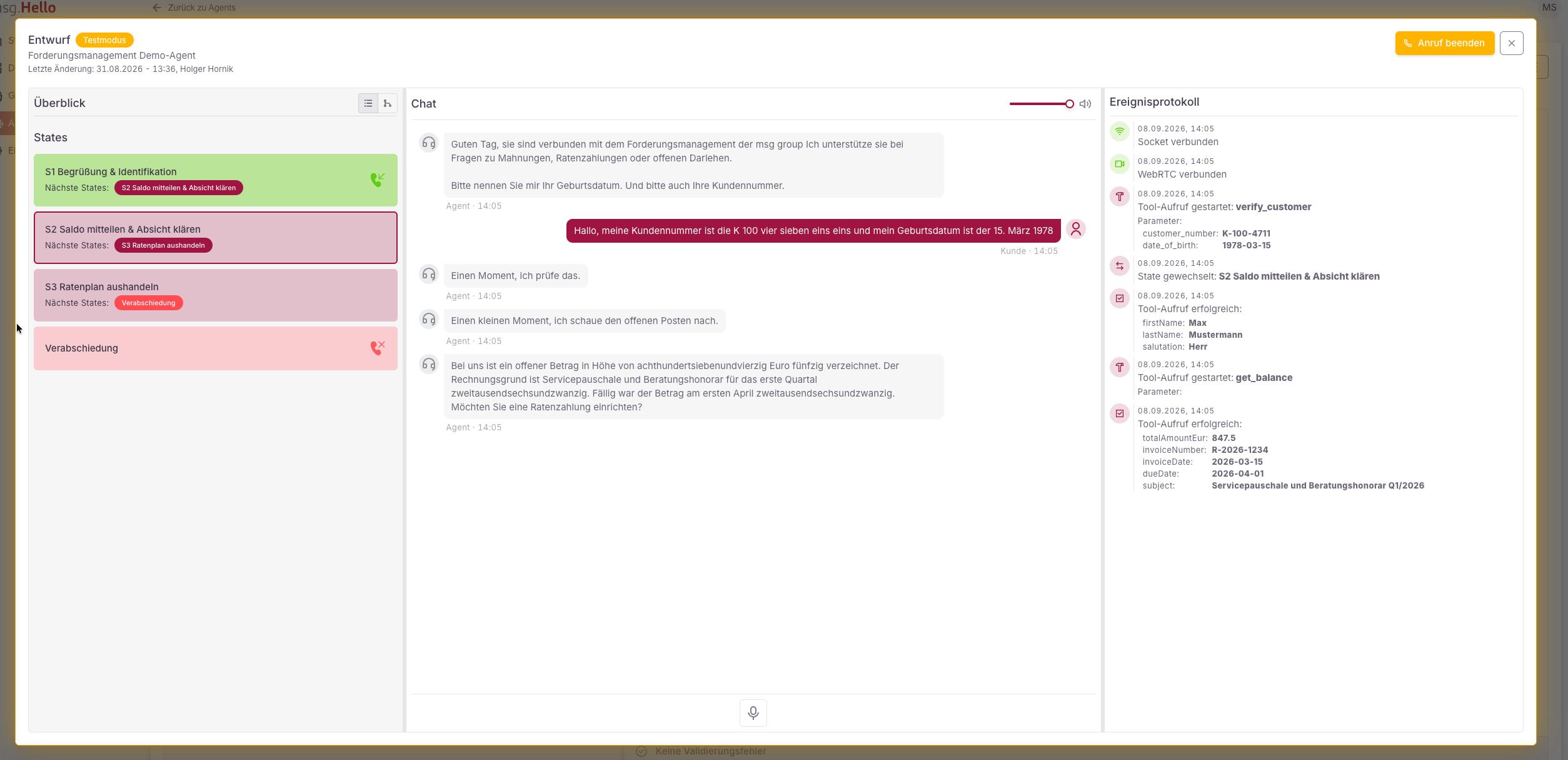 In the event log, pay particular attention to the **tool calls** and **state changes** – this lets you quickly see whether your transition conditions take effect as intended.