

The flow editor
The flow editor is a graphical interface in which you arrange states as nodes and link them with connections (transitions). You can arrange the graph freely, add states, edit them, and remove them again.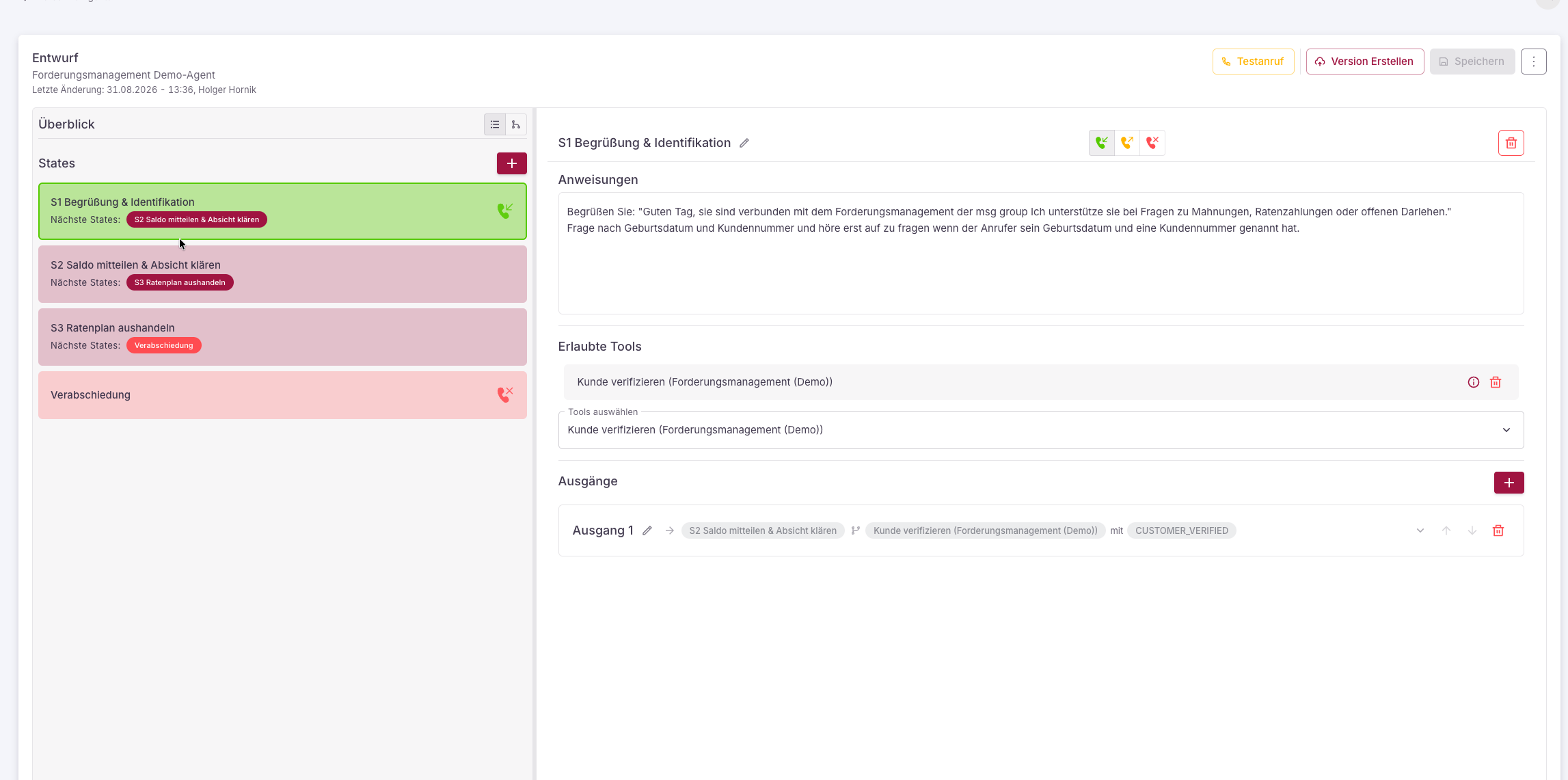
The flow editor: on the left the list of states, on the right the configuration of the selected state (instructions, permitted tools, outputs).
Undo and redo
You can undo every change in the draft. This applies to edited fields and type changes as well as to deleted states and a flow import. Use the Undo and Redo buttons in the editor header or the keyboard shortcuts.
Typing several characters in a row into the same field counts as a single step. The history covers the last 50 steps and lasts as long as the editor is open. When the cursor is in a text field, the shortcuts act on the text field itself.
Confirmation dialogs
Before the editor discards anything, it asks for confirmation and names the consequences.- Delete state shows how many outputs of other states point to this state and lose their target as a result. If it is the start state, the dialog points out that the flow then has no entry point.
- Change type (Standard, Forward, Hang up) lists what gets lost, such as outputs, conditions, allowed tools or the forward number. Switching the type back later does not restore them.
- Import flow points out that the import replaces every state in the draft.
States
A flow consists of states – the steps of the conversation. A state carries its own instructions, permitted tools, and transitions to subsequent states. Two additional points end the conversation:Forwarding
Connects the call to an external phone number (e.g. to a human).
Hanging up
Ends the call.
Transitions and conditions
A state has outputs – named, ordered transitions to subsequent states. Each output is tied to a condition:- a tool that was called in the state,
- an expected response code (the result of the tool),
- optionally negated (“does not apply”).
No response code, no transition. If a tool does not trigger a declared response code, the agent stays in the current state. This keeps you in control of the conversation’s course.
Example
Tools in a state
For each state, you define which tools the agent may use there. They come from three categories (details under Integrations & Tools):- Built-in tools – platform-native and configuration-free, such as
classifyfor sorting the request. The categories become response codes for your transitions. - Connector tools – business actions such as “book appointment” or “look up patient” that go to your system via a connector (e.g. planorg PVS).
- MCP tools – tools of a connected MCP server.
classify, transfer, and hang-up work fully. Connector-tool execution is live for the connected systems (MCP servers, planorg PVS, demo connectors).State instructions
Each state can carry its own instructions that apply only there (in addition to the agent’s base instructions).Validation
The editor checks your flow continuously – for example whether all states are reachable and transitions are valid. Open issues are shown before you publish.Versioning
1
Edit the draft
You always work on an editable draft.
2
Publish
On publishing, the draft is validated and stored as an immutable, numbered version.
3
Activate
You set a version as the live version. New calls use it immediately.
Import and export flows
You can export a complete flow as a JSON file and import it elsewhere – handy for backing up, duplicating, or transferring flows between agents.1
Export
In the flow editor, open the ⋮ menu (top right) and choose Export flow. The dialog shows the flow data as JSON. You can Copy it or save it as a JSON file with Download file. Export is also possible in the read-only version view.
2
Import
In the draft, open the same menu and choose Import flow. On the File tab, drag a previously exported JSON file into the dialog, or paste the JSON on the Text tab. With Import flow, the content replaces the current draft. Afterwards, check the result with a test call.
The import overwrites the existing draft. Already published versions remain untouched – the imported flow only becomes a version with the next publish. If you don’t like the result, bring back the previous draft with Undo.
Structure of an export file
The file contains aflow object with:
-
startStateId– ID of the start state. -
statesOrder– order of the states. -
states– the states, one key per state ID. A state carries:type–REGULAR,FORWARD, orHANGUP.name– display name.stateInstructions– the instructions of the state.allowedTools– permitted tools (forREGULAR).outputsOrder/outputs– the outputs. Each output has a target (transitionTo) andconditionsmade oftool,responseCode, andisNegated.
FORWARDstate additionally carries the target phone number, aHANGUPstate only a name and instructions.